Configuration
2.1. Environment Variables
Environment variables are used to store important information that your project needs to function. They keep sensitive data like API keys and database URLs safe and secure.
Firstly, rename the .env.example file to .env, so you can start working on it.
Obtaining Environment Variables
- DATABASE_URL
- The URL that connects your app to your Neon PostgreSQL database.
- How to obtain:
-
Sign up for an account on Neon.
-
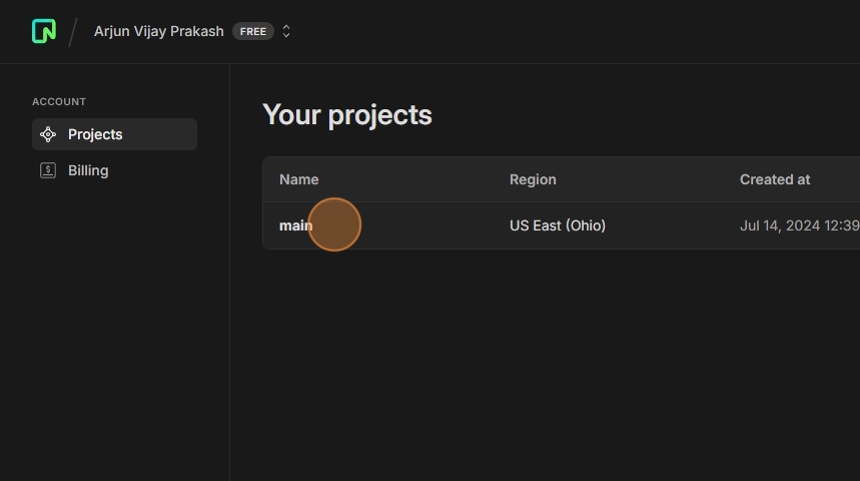
Create a project and open it.
-
In the Connection string section - click
Copy snippet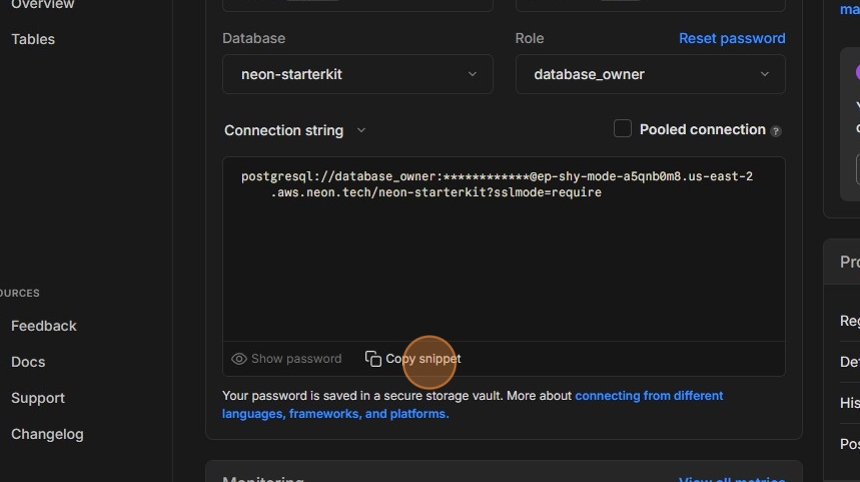
-
Now that you have got the string, paste it in place of the DATABASE_URL variable.
-
- NEXT_PUBLIC_CLERK_PUBLISHABLE_KEY & CLERK_SECRET_KEY
- The public API and secret key for Clerk.
- How to obtain:
-
Navigate to clerk.com and create an account for free.
-
Head to your dashboard.
-
Click
Create application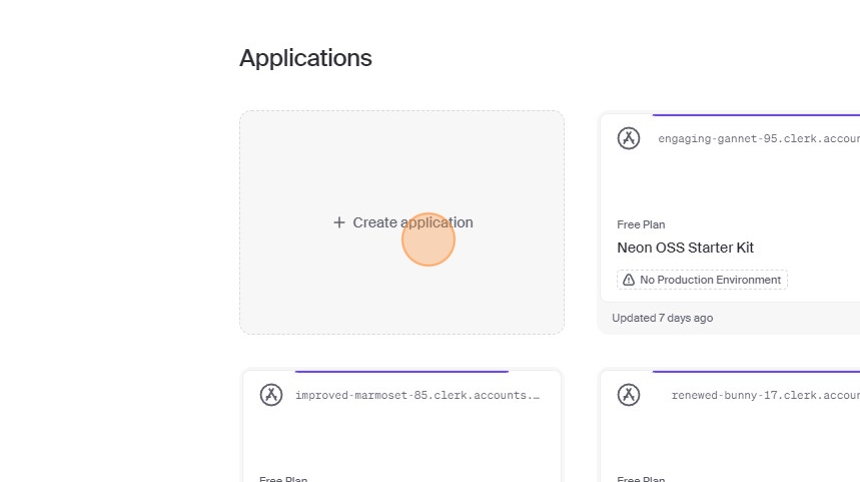
-
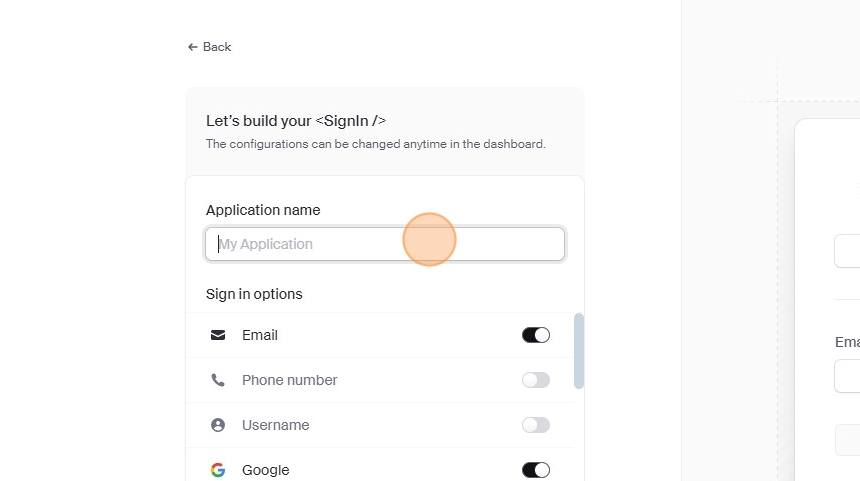
Name your application.
-
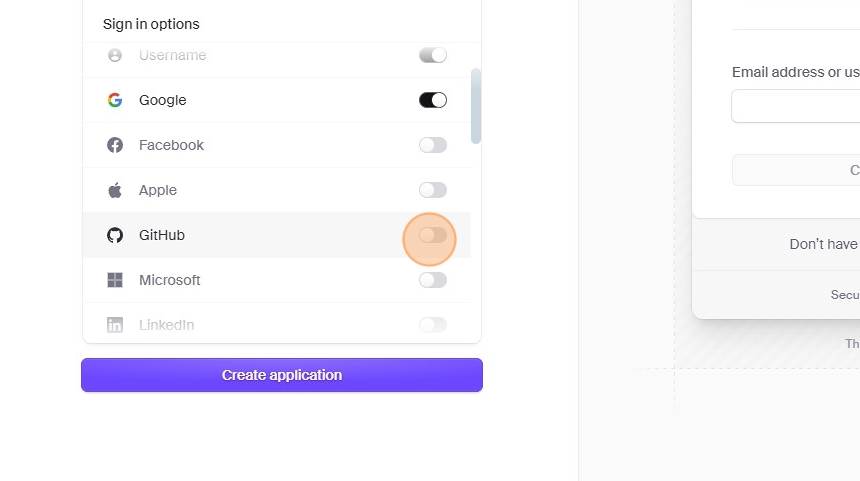
On
Sign in options- enable Google, Github, Email and Username. (or any of your choice)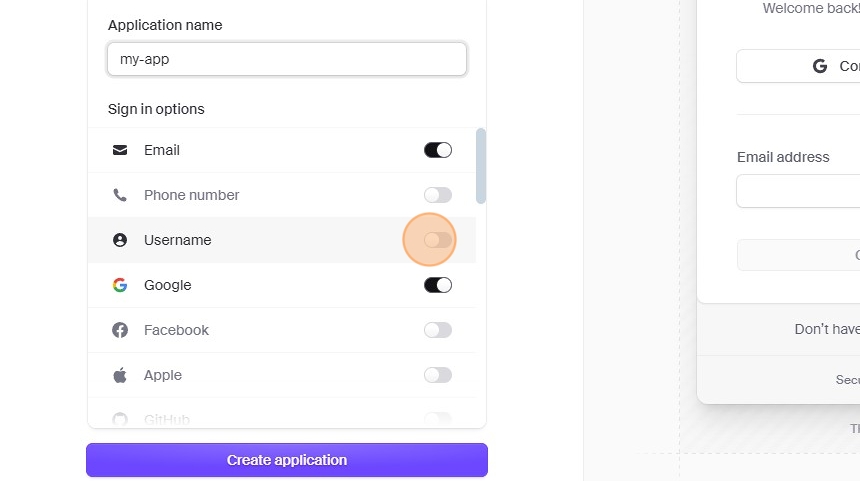
-
Click on Create Application and find the
Set your environment variablesoption, copy them and paste them into your .env file.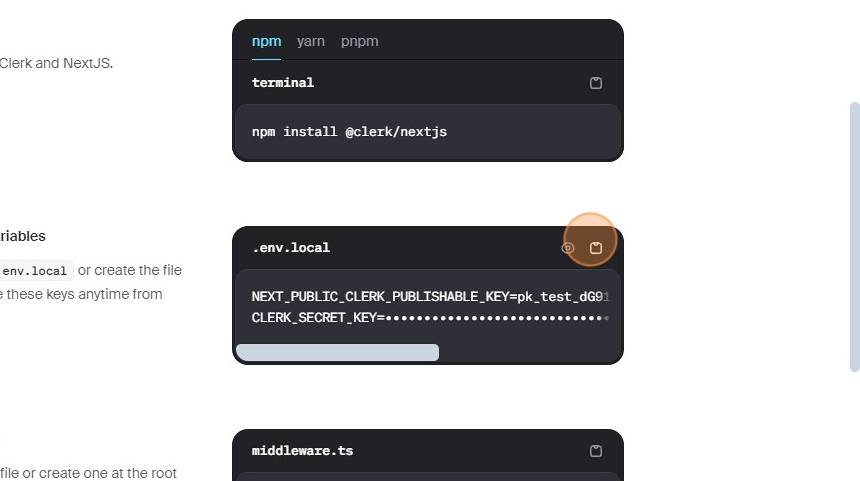
-
- NEXT_PUBLIC_CLERK_AFTER_SIGN_IN_URL
- The URL where users are redirected after signing in.
- Choose the URL path for user redirection after they sign in. Typically, this is set to
/dashboard.
- NEXT_PUBLIC_CLERK_AFTER_SIGN_UP_URL
- The URL where users are redirected after signing up.
- Choose the URL path for user redirection after they sign up. Typically, this is set to
/dashboard.
- NEXT_PUBLIC_CLERK_SIGN_IN_URL
- The URL for the sign-in page.
- Define the URL path for the sign-in page. This is usually set to
/sign-in.
- NEXT_PUBLIC_CLERK_SIGN_UP_URL
- The URL for the sign-up page.
- Define the URL path for the sign-up page. This is usually set to
/sign-up.
- WEBHOOK_SECRET
- A secret key that is used to verify webhooks.
- Prerequisite:
- The application’s deployed link.
-
The application won’t work with the wrong URL in the webhooks.
The solution to that is simply, using the correct deployed link of your application.
Check out this video to learn how to deploy your application on Vercel.
-
- The application’s deployed link.
- How to obtain:
-
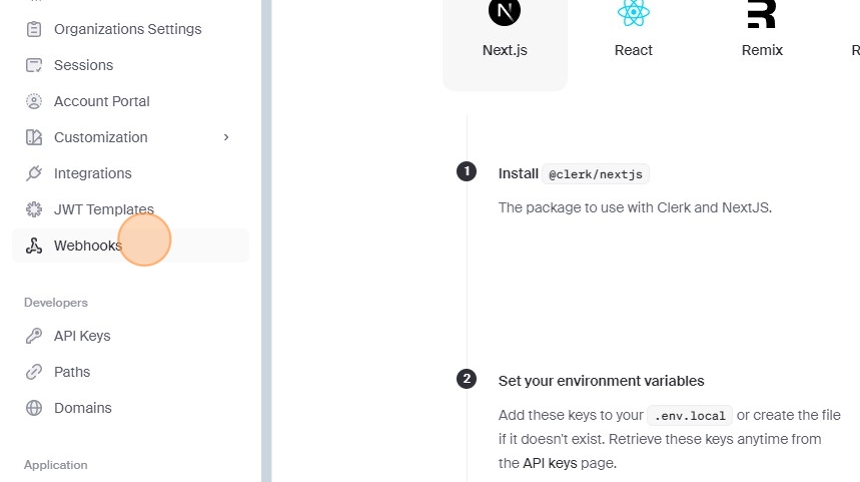
Head to /webhooks
-
Wait for it to load and then, click
Add Endpoint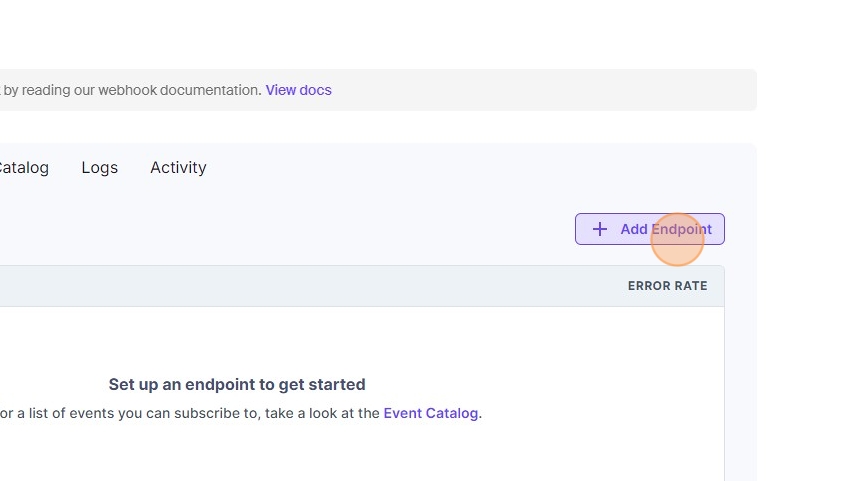
-
Write your deployed application URL followed by
/api/webhooks/clerk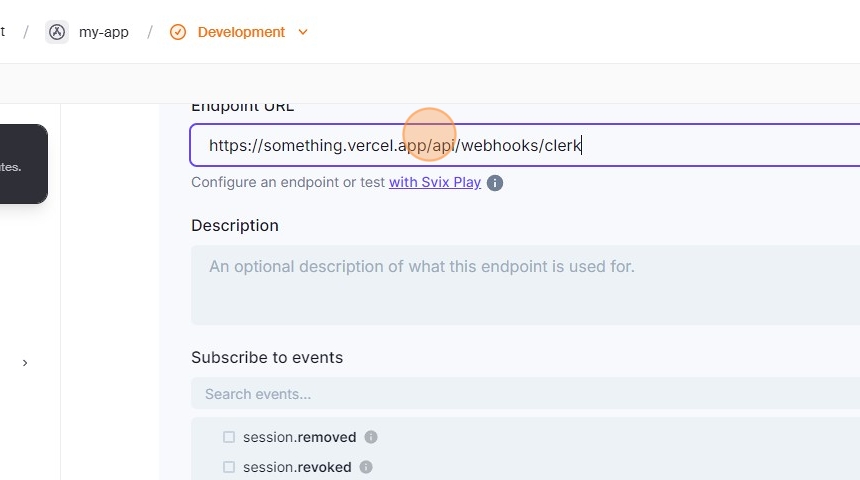
-
Scroll to
Subscribe to eventsand click onuser.created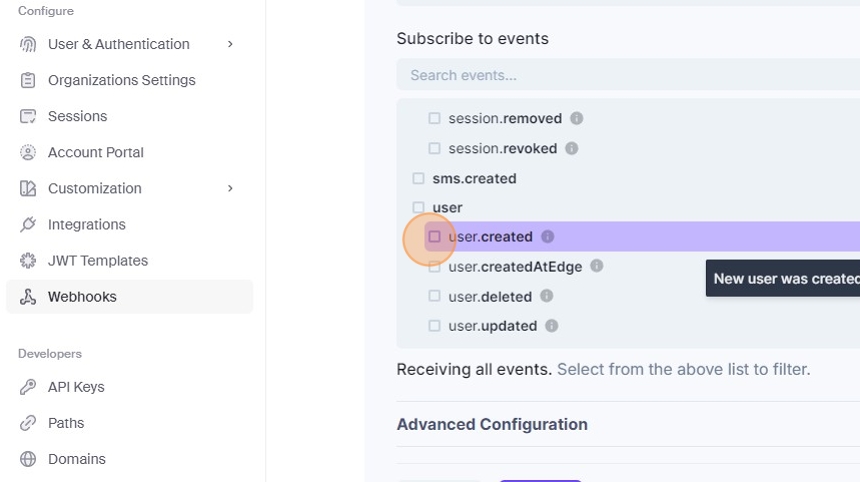
-
Now, click
Create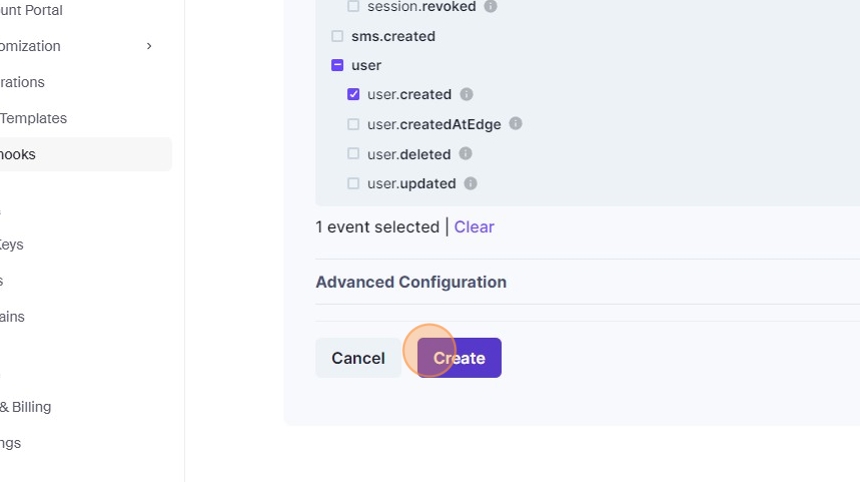
-
Follow where the application is redirecting you and scroll to get the
Signing Secretand copy it. That is your webhook secret.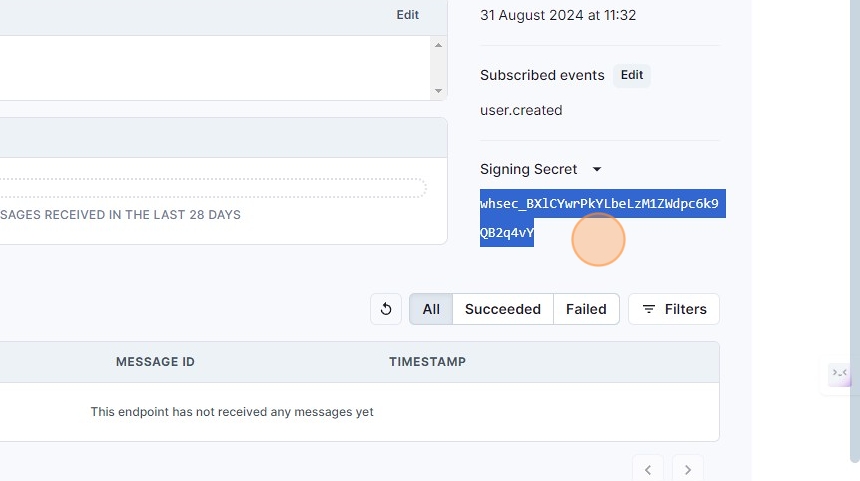
-
Paste it into your .env file in place of the
WEBHOOK_SECRETvariable and it’s done!
-